JiveDB (also written JDB) is a desktop application that lets you connect to a database, browse its structure, look at data, and run SQL — all from one window. It works with PostgreSQL, MySQL (and MariaDB), SQLite, and Redis. You do not need a separate tool for each database type.
This chapter shows the main parts of the JiveDB window and explains where to find version information. Later chapters explain each part in detail.
1. What JiveDB does
JiveDB is a single client for:
- PostgreSQL — a full-featured SQL database.
- MySQL / MariaDB — a full-featured SQL database.
- SQLite — a file-based SQL database, no server needed.
- Redis — a key-value data store.
With one connection you can browse tables, run queries, edit data in a grid, view an entity-relationship (ERD) diagram, and — for Redis — browse keys and values. An AI assistant panel can also help you write SQL and explain your schema and data.
Every connection you save is stored on your own computer. Passwords are encrypted before they are written to disk (see Chapter 2 — Connections for details).
2. The main window
When you open JiveDB for the first time, no connection is open yet. The window looks like this:
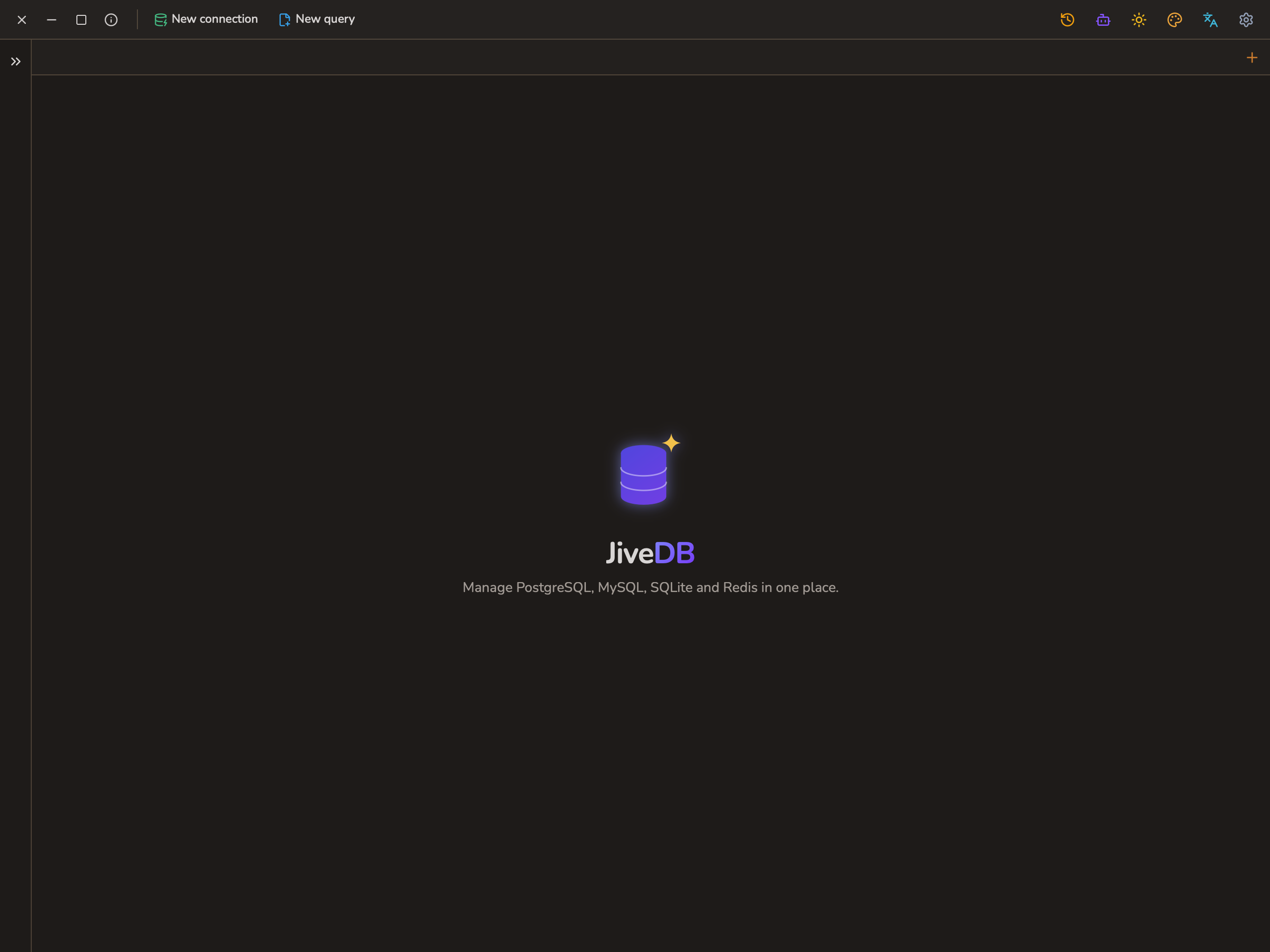
The window has these main areas:
- Title bar (top) — the app window controls, and an info icon that opens the About dialog.
- Toolbar (below the title bar) — a New connection button, a New query button (grayed out until a connection exists), and a row of icons on the right (theme, language, settings, and more — see section 3).
- Sidebar (left, collapsed at first launch) — lists your saved connections, grouped into folders. Click the » chevron on the left edge to expand it. See Chapter 3 — Navigation and search.
- Main content area (center) — shows query editor tabs, table data, the ERD diagram, or the Redis browser, depending on what you open.
- AI Assistant panel (right, hidden until toggled) — a chat panel that can write SQL for you and explain your schema and data. See Chapter 6 — AI Assistant.
The center of the empty window shows the JiveDB logo and the tagline:
"Manage PostgreSQL, MySQL, SQLite and Redis in one place."
3. The toolbar icons
The icon row on the top-right of the toolbar is available from anywhere in the app. From left to right:
| Icon | Tooltip | What it does |
|---|---|---|
| Clock | Query history | Opens the query history panel. See Chapter 5. |
| Robot | AI | Opens or closes the AI Assistant panel. See Chapter 6. |
| Sun / Moon | Theme | Switches between light and dark mode. See Chapter 12. |
| Palette | Accent color | Opens a quick picker for the app's accent color. See Chapter 12. |
| Translate ("文A") | Language | Opens a quick picker for the app's display language. See Chapter 12. |
| Gear | Settings | Opens the Settings dialog. See Chapter 13. |
4. The About dialog
To see which version of JiveDB you are running, click the info icon in the title bar (top-left, next to the window controls).
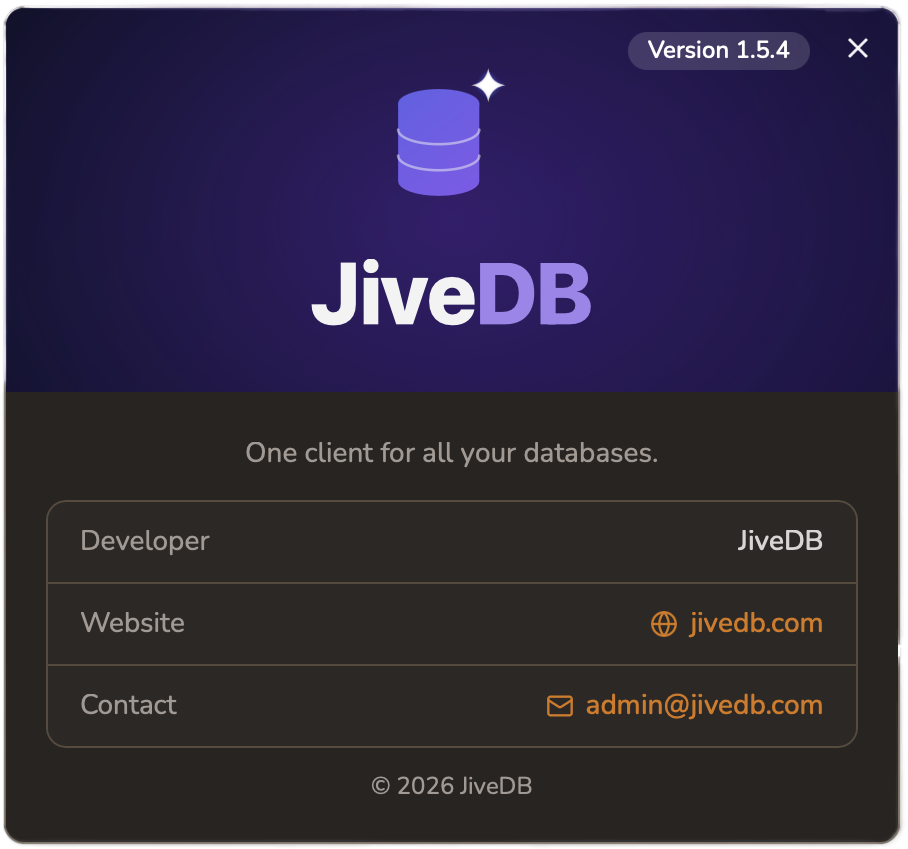
The About dialog shows:
- The app name and tagline: "One client for all your databases."
- Version — the version number of your installed copy.
- Developer — the app publisher.
- Website and Contact — links you can click.
- A copyright line at the bottom.
If a newer version of JiveDB is available, this dialog is also where you start the update. The full update process, with the version badge and progress steps, is covered in Chapter 14 — Updates.
5. Where to go next
- To connect to your first database, go to Chapter 2 — Connections.
- To learn how to find tables and use the sidebar, go to Chapter 3 — Navigation and search.