The schema explorer, called the Info tab, gives you a read-only, at-a-glance inventory of everything inside one schema (or database) — its tables, views, indexes, and routines — without opening each object one by one. This chapter also covers the quick search box used to jump straight to one object.
1. Opening the Info tab
Right-click a schema or database and choose Info (see Chapter 3). This opens a new tab with four sub-tabs: Tables, Views, Indexes, Procedures. Everything shown here is read-only — the Info tab never changes your data or structure.
2. Schema Info
The Info tab has four sub-tabs: Tables, Views, Indexes, and Procedures. Click each tab to view different schema objects:
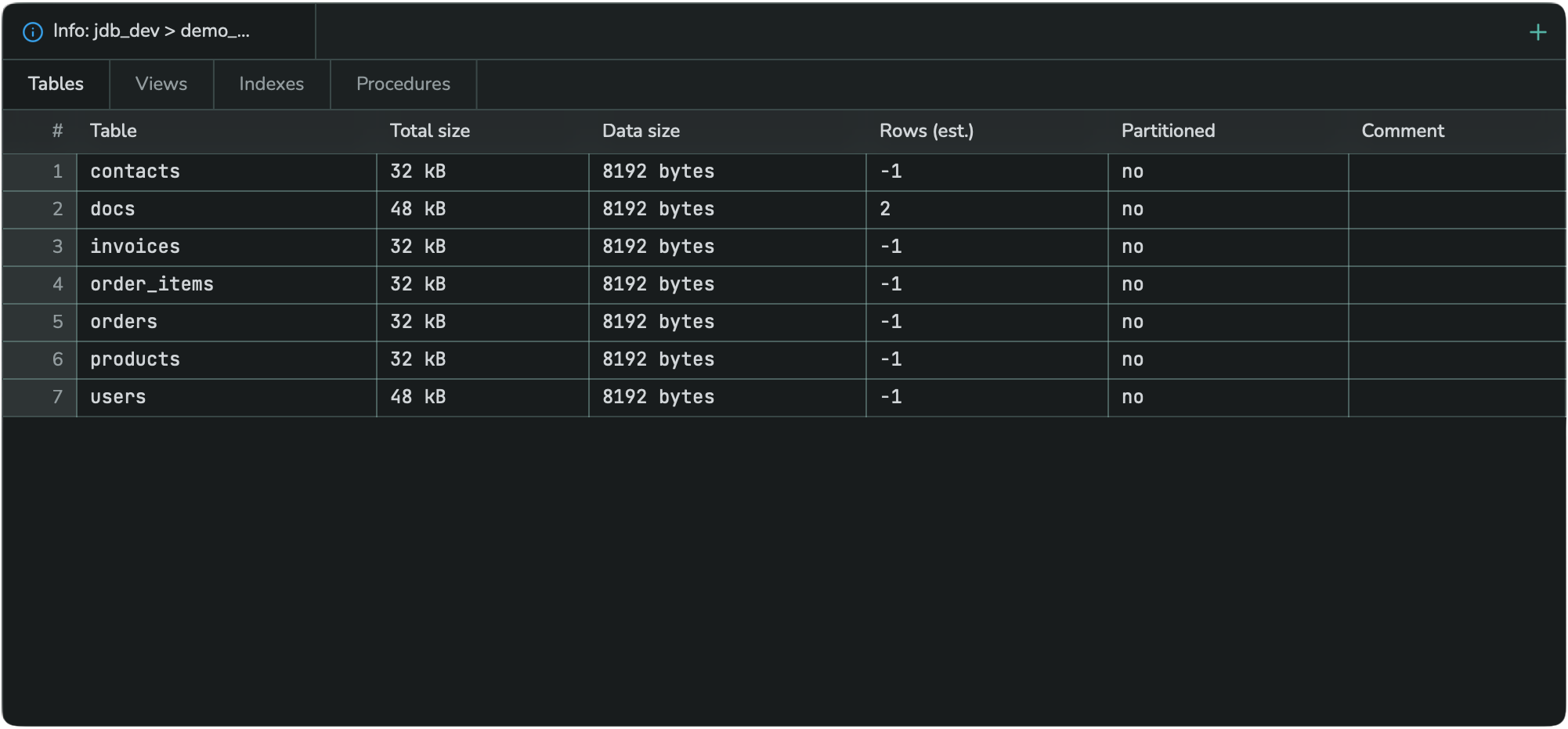
Tables — Columns: Table, Total size, Data size, Rows (est.), Partitioned, Comment. The exact columns available depend on your database type — for example, MySQL/MariaDB show engine and auto-increment details instead of a partitioned flag.
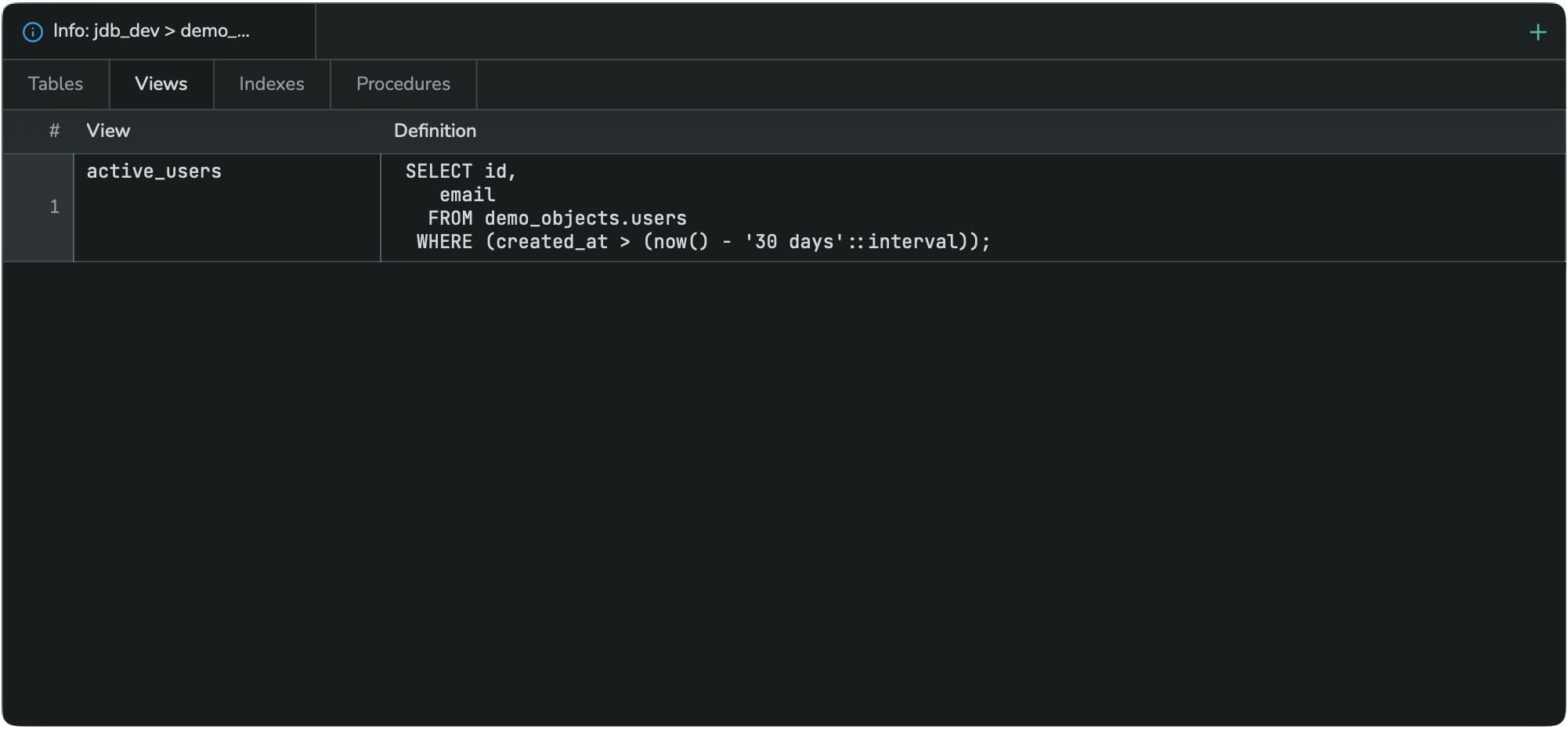
Views — Columns: View, Definition (the view's underlying SELECT statement).
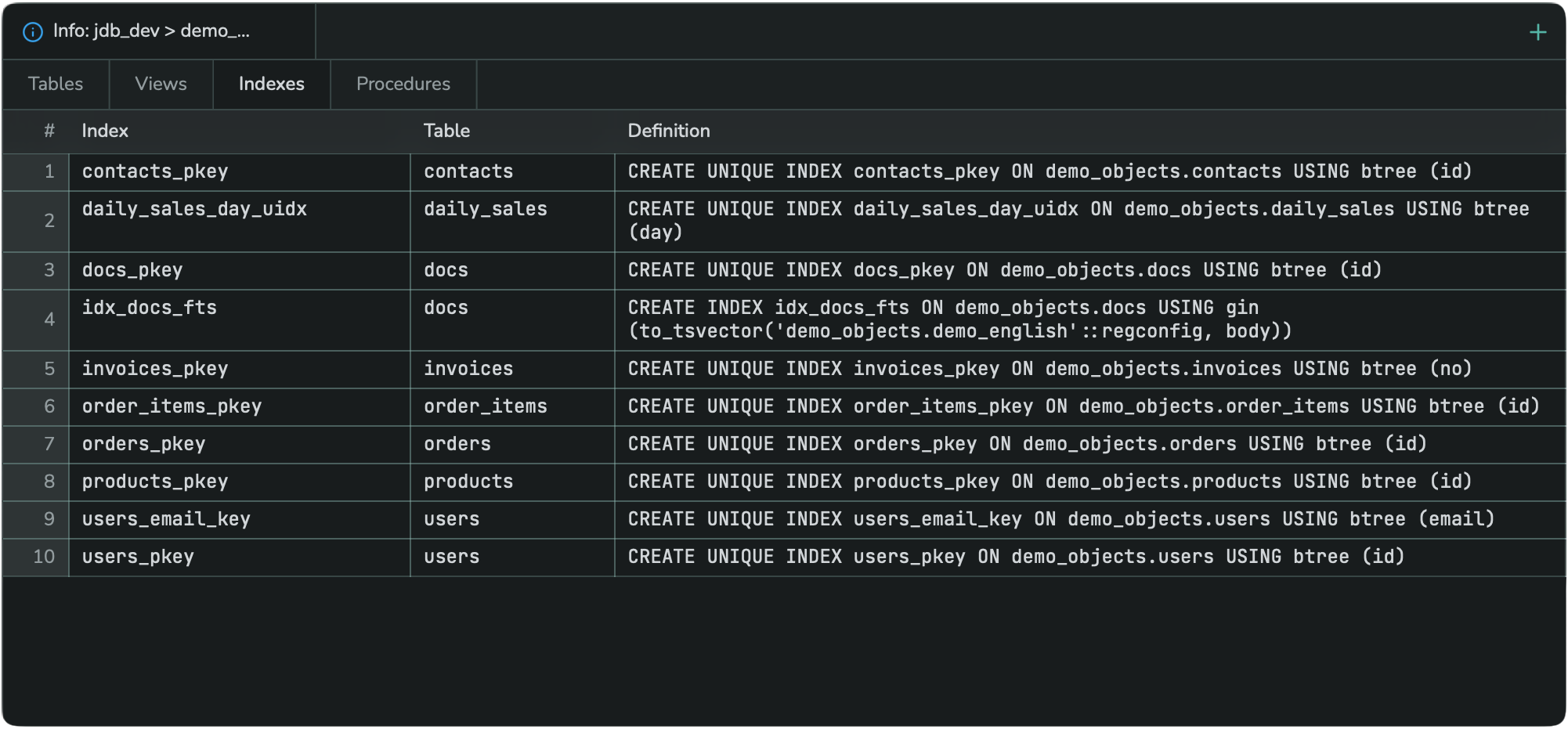
Indexes — Columns: Index, Table, Definition.
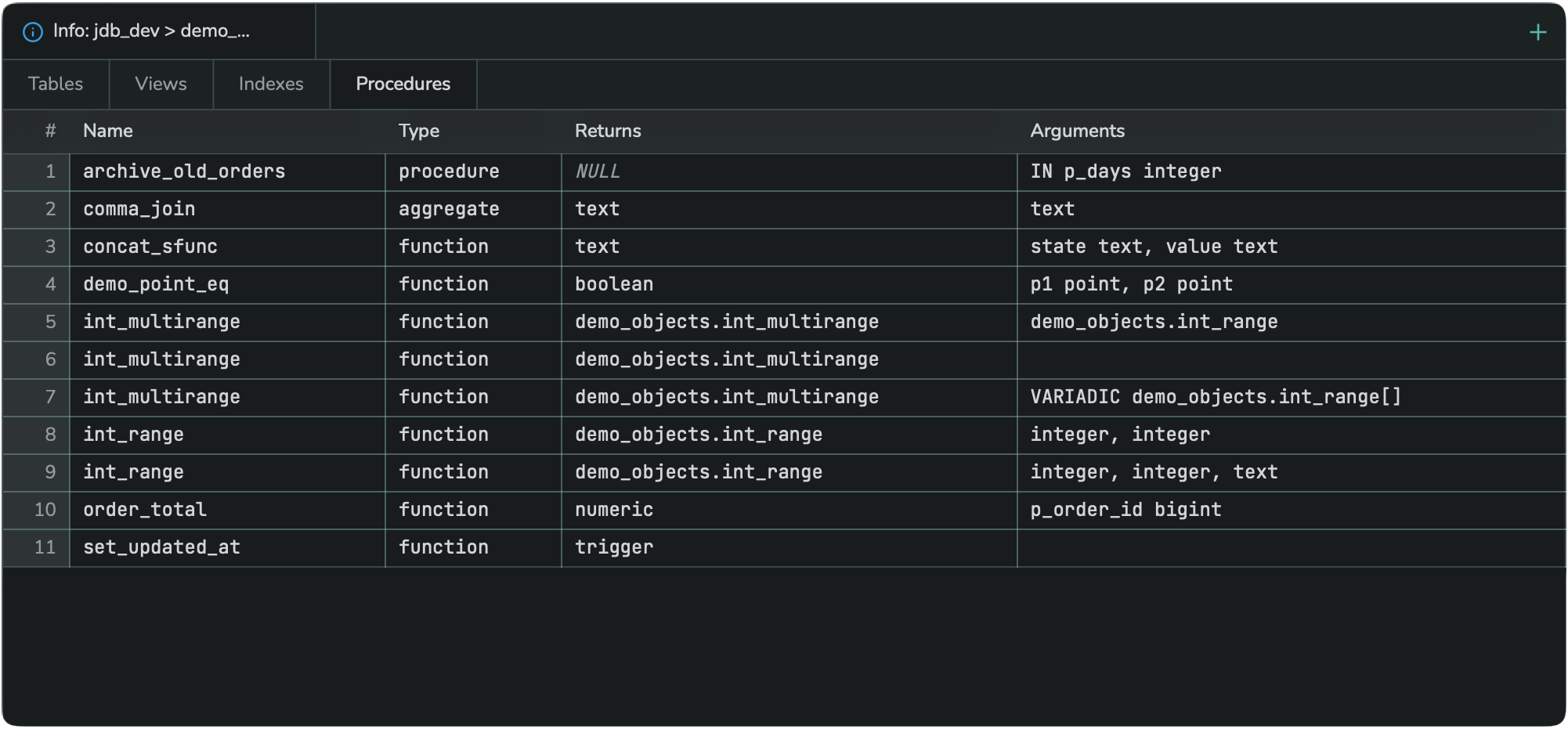
Procedures — Columns: Name, Type (procedure, function, or aggregate), Returns, Arguments. If a function has more than one overload (the same name with different argument types), each overload appears as its own row.
6. Searching a schema
To jump straight to a table, view, or routine by name, right-click the schema and choose Search Database:
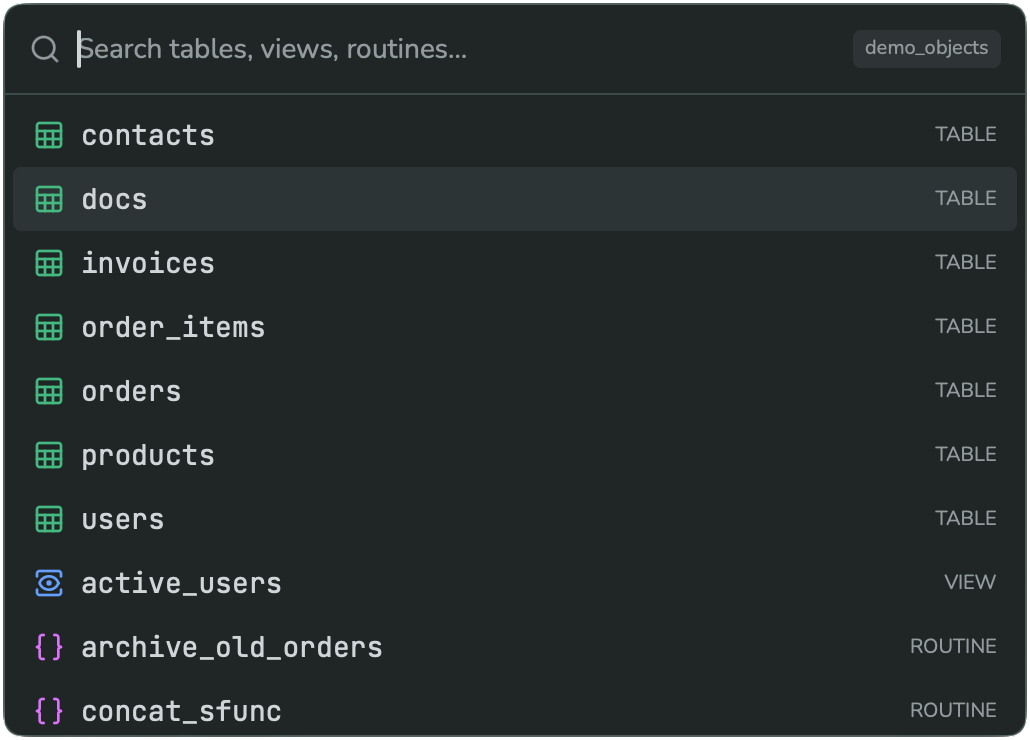
Type any part of a name. Results are grouped with a colored badge for their kind: green for TABLE, blue for VIEW, purple for ROUTINE.