JiveDB lets you switch between light and dark mode, pick an accent color, choose fonts, and change the display language — either from quick toolbar pickers, or from the full Settings dialog. This chapter covers both.
Contents
1. Light and dark mode
Click the sun/moon icon in the toolbar to toggle between dark and light mode instantly:
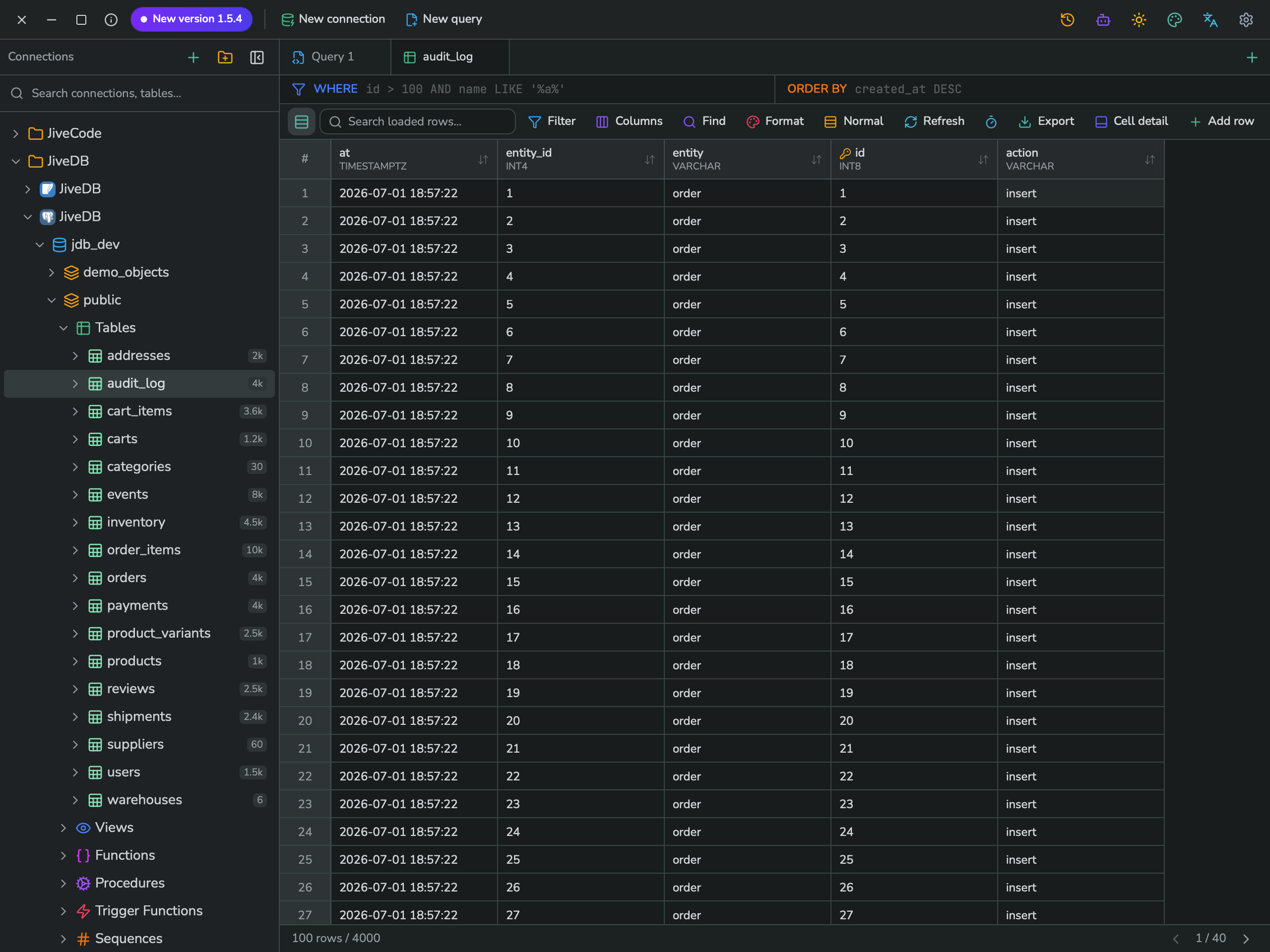
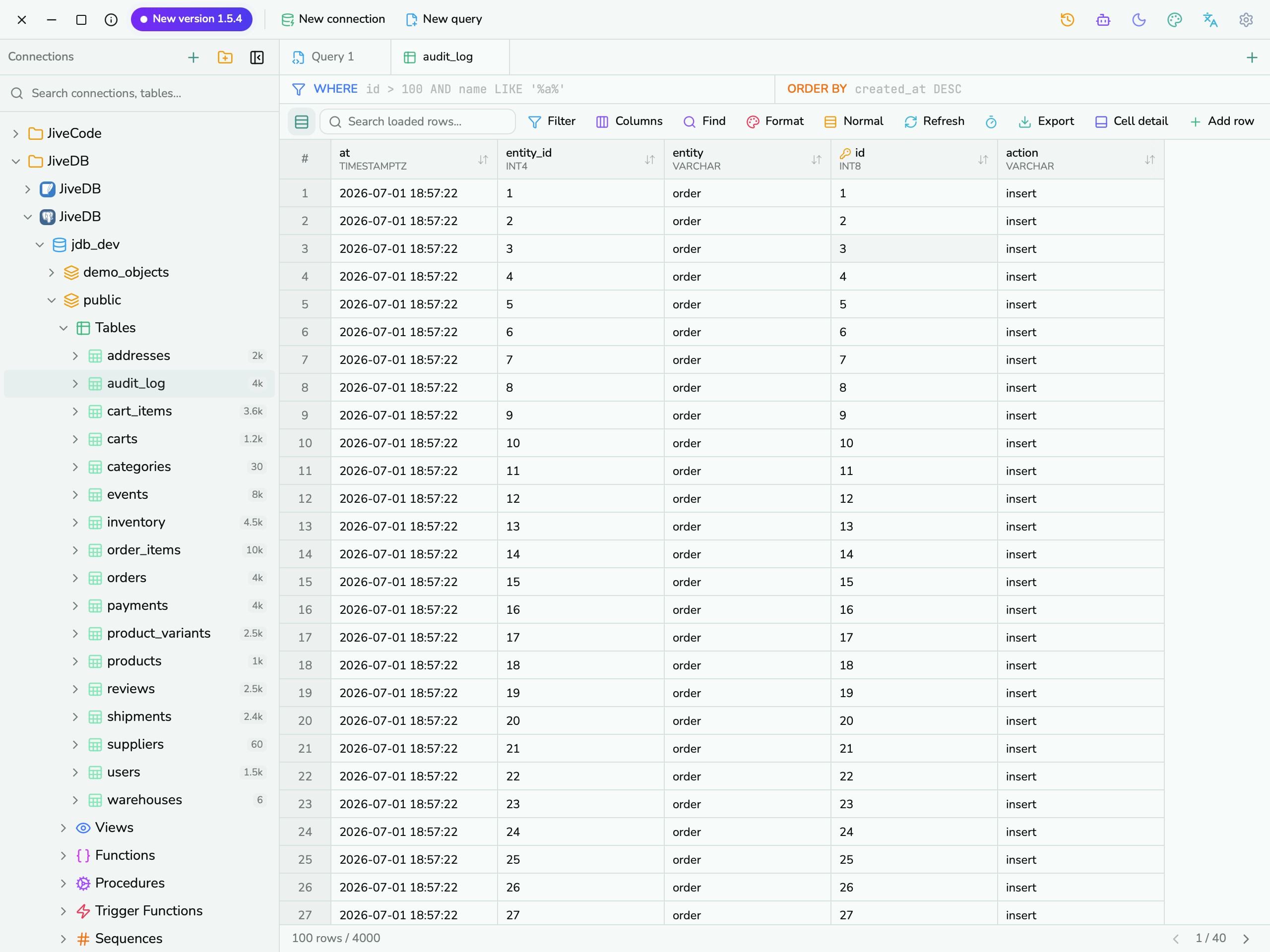
You can also choose Light, Dark, or System (follow your operating system's setting) from the full Settings dialog — see section 4.
2. Quick accent color picker
Click the palette icon in the toolbar to quickly change the app's accent color:
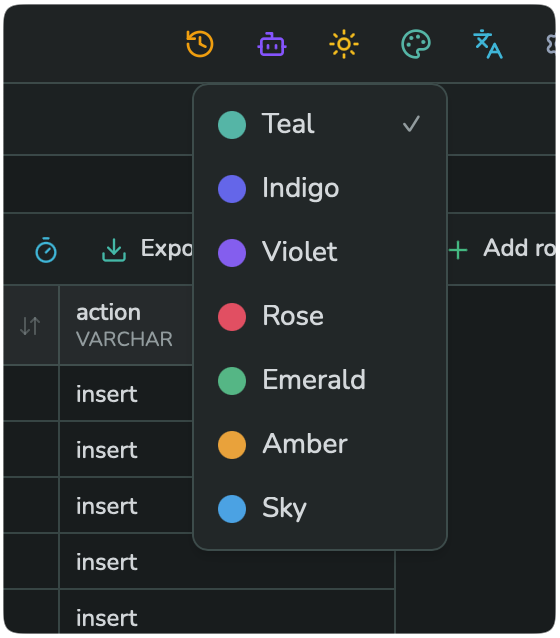
Available colors: Teal, Indigo, Violet, Rose, Emerald, Amber, Sky. A checkmark shows the currently selected color.
3. Quick language picker
Click the translate icon ("文A") in the toolbar to change the display language:
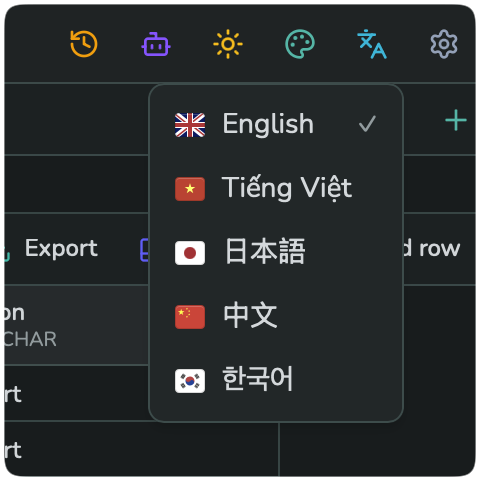
JiveDB currently supports 5 languages: English, Tiếng Việt (Vietnamese), 日本語 (Japanese), 中文 (Chinese), and 한국어 (Korean).
4. Full appearance settings
Open Settings (gear icon in the toolbar) and select the Appearance section for more detailed control:
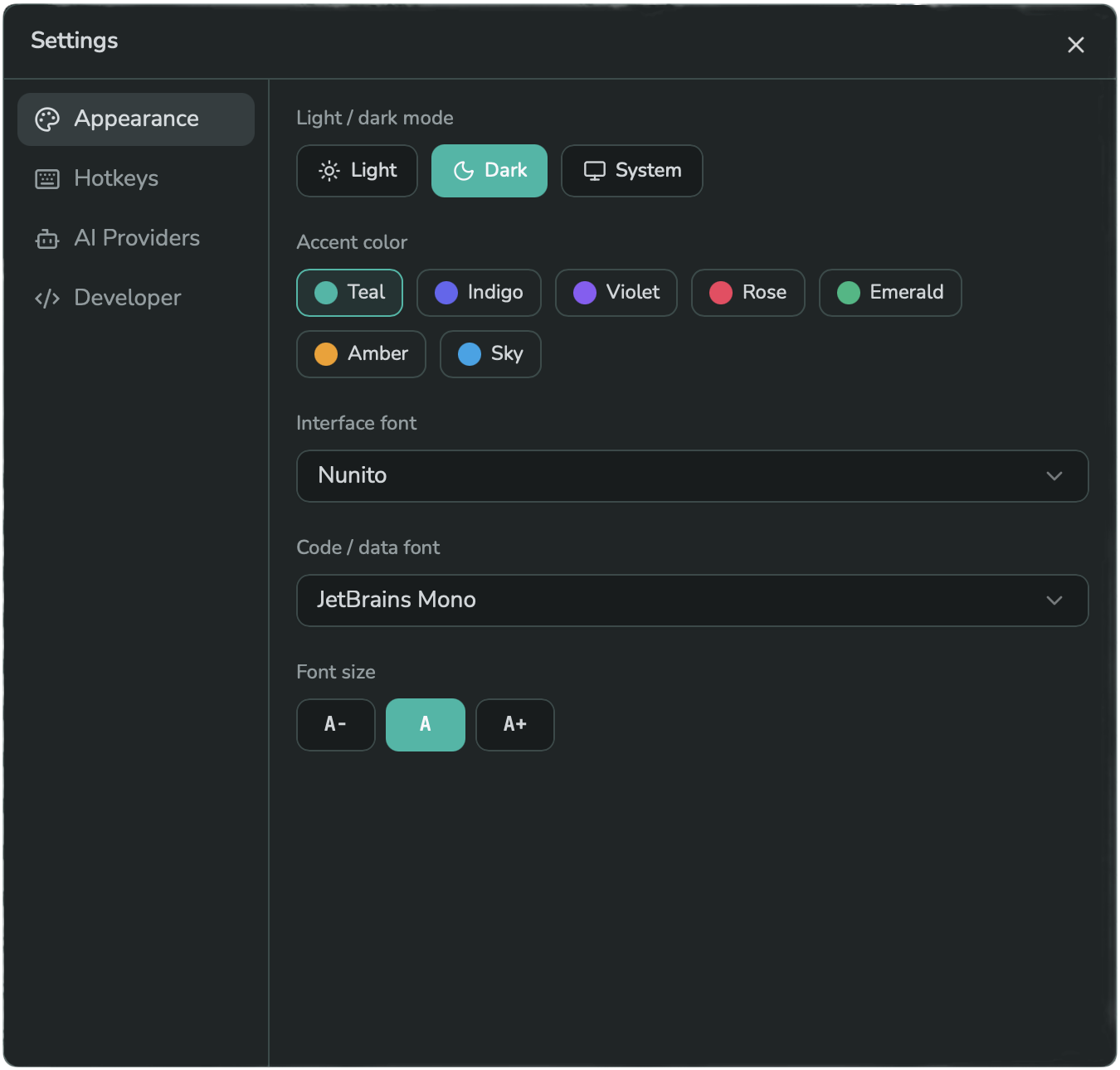
- Light / dark mode — choose Light, Dark, or System.
- Accent color — the same 7 colors as the quick picker.
- Interface font — the font used for the app's own UI text (for example, "Nunito").
- Code / data font — the monospace font used in the SQL editor and data grid (for example, "JetBrains Mono").
- Font size — A- (small), A (default), or A+ (large).
Changes apply immediately, so you can try a combination and see the result right away.