JiveDB checks for new versions automatically, but it never installs or restarts itself without your permission. This chapter explains how the update notice appears and the exact steps to update.
Contents
1. How you learn a new version exists
Every time you open JiveDB, it quietly checks in the background for a newer release. This check is small and never blocks the app — if you have no internet connection, JiveDB simply skips the check and tries again next time you open it.
If a newer version is found, a badge appears on the title bar, for example:
New version 1.5.4
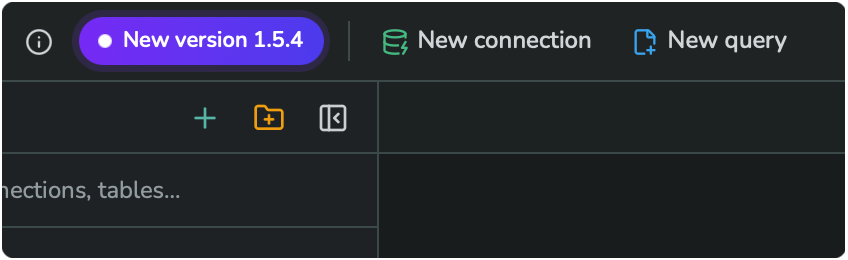
If you are already on the latest version, no badge appears at all.
2. Steps to update
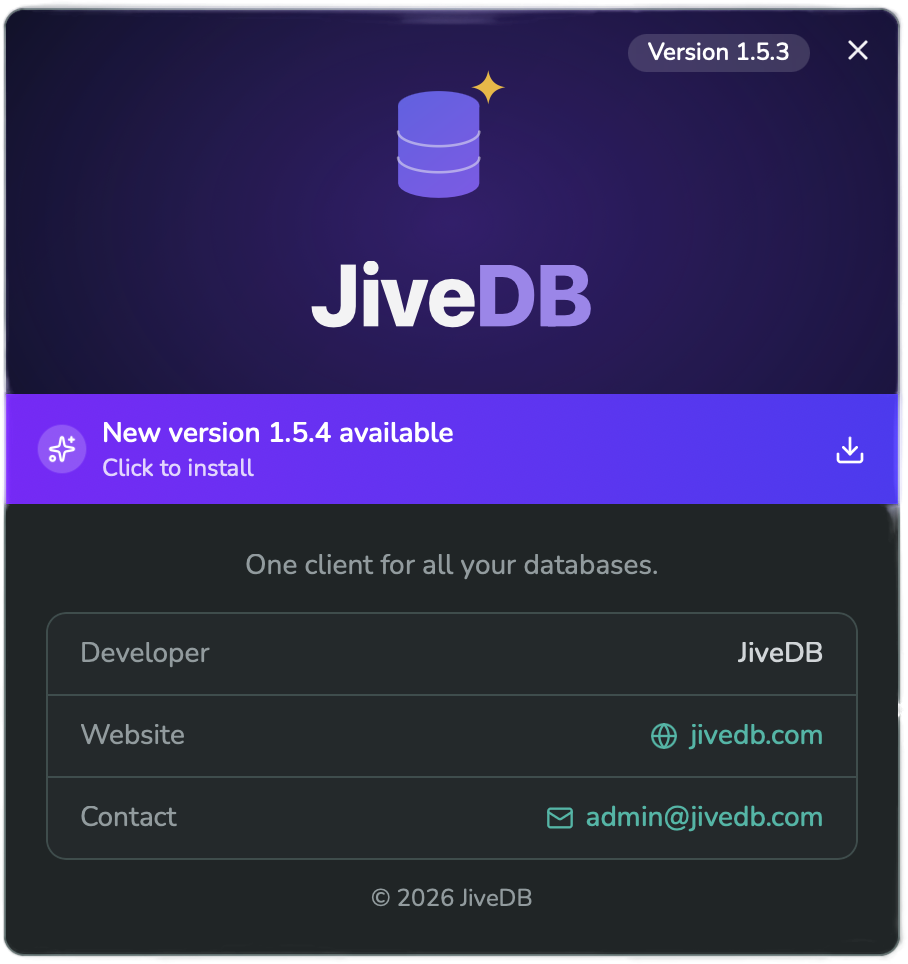
- Click the New version badge on the title bar, or open the About dialog from the info icon (see Chapter 1 — Introduction).
- In the About dialog, a highlighted banner appears near the top, reading "New version {{version}} available — Click to install."
- Click the banner to start the update.
- Wait while JiveDB shows its progress, in this order: Downloading… (percentage) → Verifying… → Installing… → Updated — restarting…
- JiveDB closes and reopens by itself, now running the new version.
3. What happens during the update
The short video below shows the full sequence: clicking the banner, the download percentage climbing, the verification step, installing, and finally JiveDB restarting into the new version.
After JiveDB restarts, check the title bar: the "New version" badge is gone, confirming the update finished successfully.
4. If the automatic update cannot finish
In some cases, JiveDB cannot finish installing by itself — for example, if it is installed in a folder that requires administrator permission to write to. When this happens:
- JiveDB saves the downloaded installer file into your Downloads folder.
- JiveDB opens that folder automatically, so you can find the file.
- Open the downloaded file and install it the same way you installed JiveDB the first time.
You can also always download the latest version directly from the JiveDB website and install it over your existing copy.
A few notes by operating system:
- macOS — keep JiveDB inside the Applications folder. This location is writable, so automatic updates can complete without extra steps.
- Windows — automatic updates work well when JiveDB is installed in your user folder (the default location). If it is installed under Program Files, you may need to install manually. Windows may also show a security warning (SmartScreen) for the downloaded file; if you downloaded JiveDB from the official source, you can choose to allow it.
- Linux — if you use the AppImage build, update it using an AppImage-specific updater tool instead of this in-app flow. For other Linux packages, if JiveDB does not have write permission to its install folder, it falls back to the manual install steps above.
5. Safety guarantees
- JiveDB never updates or restarts on its own. Every update starts only after you click the banner in the About dialog.
- Before installing, JiveDB checks that the downloaded file is authentic and has not been tampered with (a checksum check plus a digital signature check). If either check fails, JiveDB stops, deletes the downloaded file, and keeps your current version untouched — nothing is installed.
- Your connections and all your settings are kept exactly as they were. An update only replaces the application itself.
- If you close JiveDB in the middle of an update, your current version stays safe and working. Just start the update again the next time you open the app.