The AI Assistant is a chat panel that can write SQL for you, explain your schema, and describe your data — using an AI provider and model that you configure yourself. This chapter explains how to use it, and what it can and cannot do on its own.
Contents
1. Opening the AI Assistant
Click the robot icon in the top-right toolbar (tooltip: "AI") to open or close the AI Assistant panel, docked on the right side of the window.
Before you can use it, you need to add at least one AI provider in Settings (see section 5 below, and Chapter 13). If none is configured yet, the panel shows "No AI provider added yet." with a shortcut to open Settings.
2. Asking about your schema or data
Type a question into the input box at the bottom of the panel (placeholder: "Ask about SQL, schema, data… (Enter to send)"), for example:
- "Describe the table orders"
- "Write SQL for the 10 latest orders"
- "Suggest indexes for the orders table"
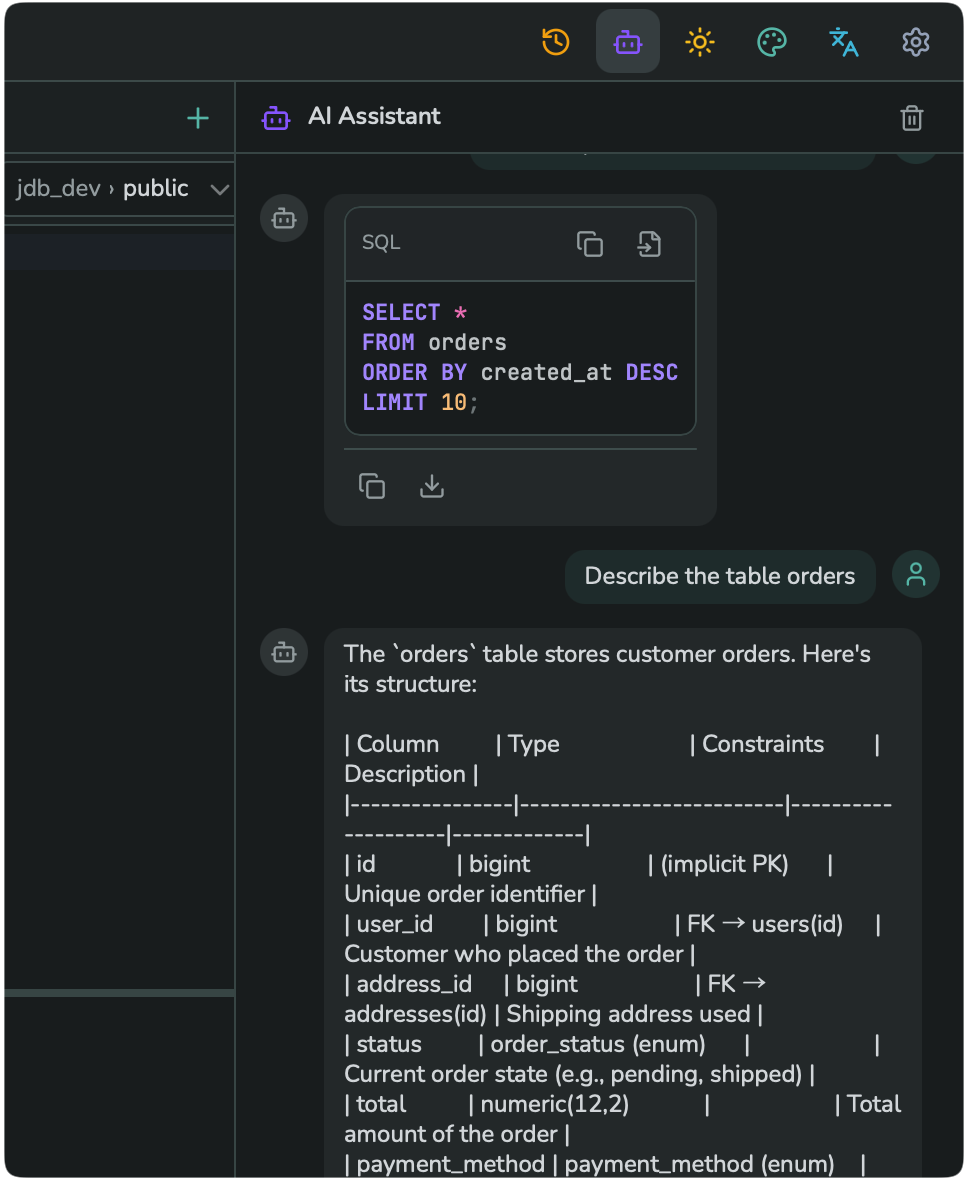
The assistant already knows your table and column names, types, primary keys, and foreign keys — it reads this from your connected database's schema, so its answers are grounded in your actual structure, not guesses.
For a schema question, the assistant answers with a description and a table of columns, including primary and foreign keys and how the table relates to others. For a SQL request, it answers with a ready-to-use SELECT statement, shown in a highlighted code block with Copy and Save as Markdown icons.
3. Two ways to send a question
The input row has two send buttons:
- Send (paper-plane icon) — a normal chat message. The assistant replies in the chat; nothing runs against your database.
- Ask data (database icon) — the assistant generates SQL for your question and runs it immediately against the connected database, then explains the result using the real data it got back.
For safety, Ask data only runs read-only statements (SELECT/WITH). If your question would require a statement that changes data or structure (for example, an UPDATE or DROP), JiveDB inserts the generated SQL into the editor for you to review, instead of running it automatically.
4. Working with an answer
Under any AI answer you can:
- Copy response — copy the assistant's full answer.
- Insert into editor — insert a generated SQL statement into your current query tab, without running it.
- Save as Markdown (.md) — save the answer to a file.
Use Clear conversation (trash icon in the panel header) to start a fresh chat.
5. Choosing a provider and model
At the bottom of the AI panel are two dropdowns: an AI provider (for example DeepSeek, OpenAI, Anthropic, Google Gemini, or a locally-run Ollama model) and a model for that provider. You add and manage providers in Settings → AI Providers — see Chapter 13, section 3.
6. Privacy
Only your schema (table and column names, types, keys) is sent to the AI provider you configure — never your actual row data — except when you explicitly use Ask data, which does send the query result needed to answer your question. Your API key for each provider is stored encrypted on your device.