JiveDB keeps a running log of every statement you execute, across all your connections. This chapter explains how to browse that history, and how to keep specific statements permanently as favorites.
Contents
1. Opening query history
Click the clock icon in the top-right toolbar (tooltip: "Query history"), to open the history panel:
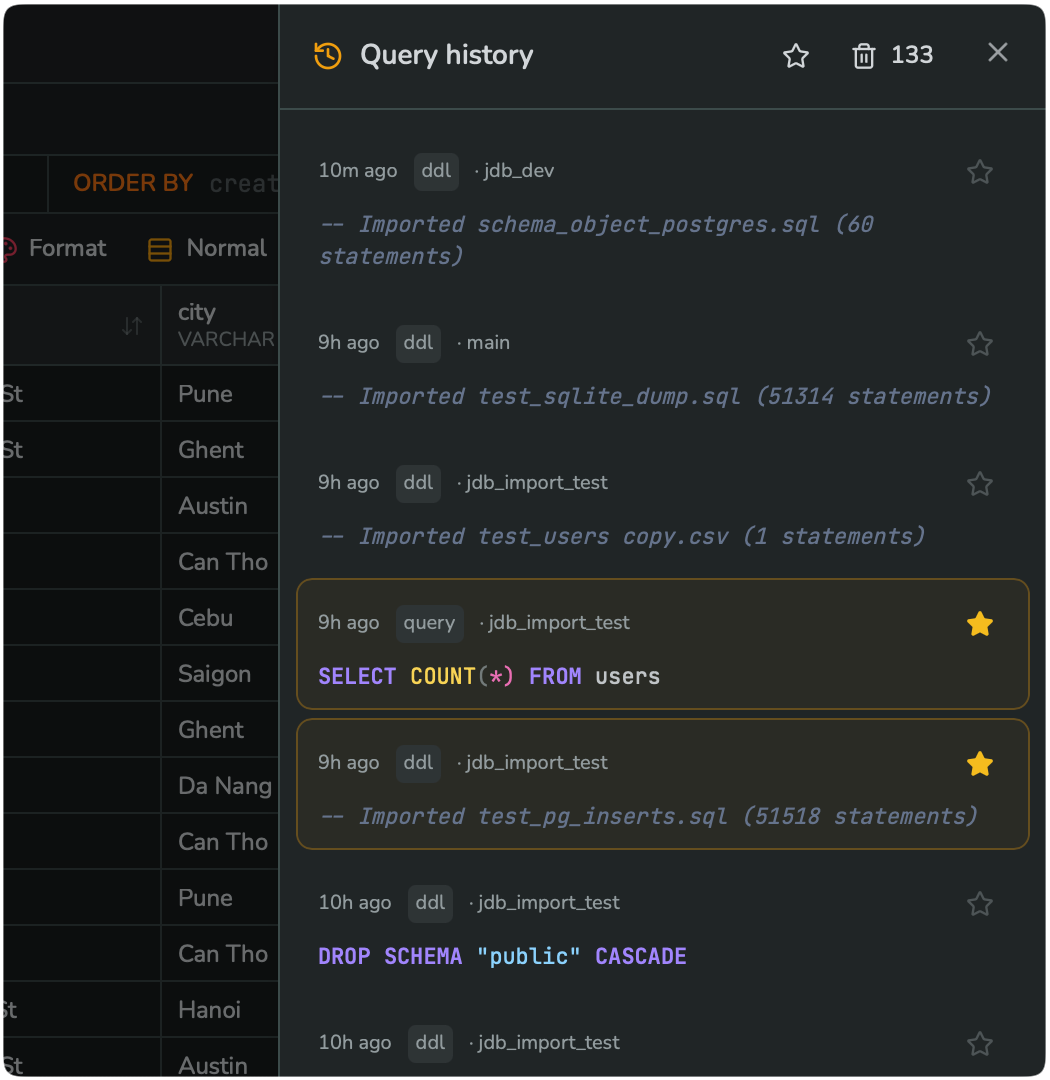
The panel shows every statement you have run, most recent first, across every connection and database you have used — it is a single, shared list, not one list per connection.
2. What each history entry shows
Each row in the list shows:
- A relative timestamp, such as "10m ago" or "9h ago".
- A kind tag, such as
query(an ordinary statement you ran) orddl(for example, an imported.sqlfile, or a schema/table change). - The database name the statement ran against.
- The SQL text itself (or, for imports, a comment line describing what was imported).
- A star icon on the right — click it to mark the entry as a favorite.
Clicking the SQL text of any entry loads it back into the query editor, ready to run again.
3. Favorites are starred history entries
There is no separate "saved queries" list in JiveDB — a favorite is simply a history entry with its star turned on. This keeps things simple: every statement you have ever run is already in history, and starring the ones you want to keep is all it takes to build your own personal collection of go-to queries.
You can star a statement in two ways:
- Click the star icon next to any entry in the Query history panel.
- While a statement is selected in the editor, press ⌘/Ctrl+S to save the current selection straight to Favorites.
To see only your starred entries, use the star filter toggle at the top of the Query history panel. To use a favorite from inside the query editor, click the Favorites button in the editor toolbar (see Chapter 4, section 7).
4. Clearing history
The trash icon in the Query history panel header clears your history — but starred entries are always kept. This means clearing history is a safe way to tidy up your log of everyday queries and imports, without ever losing a favorite you intentionally starred.