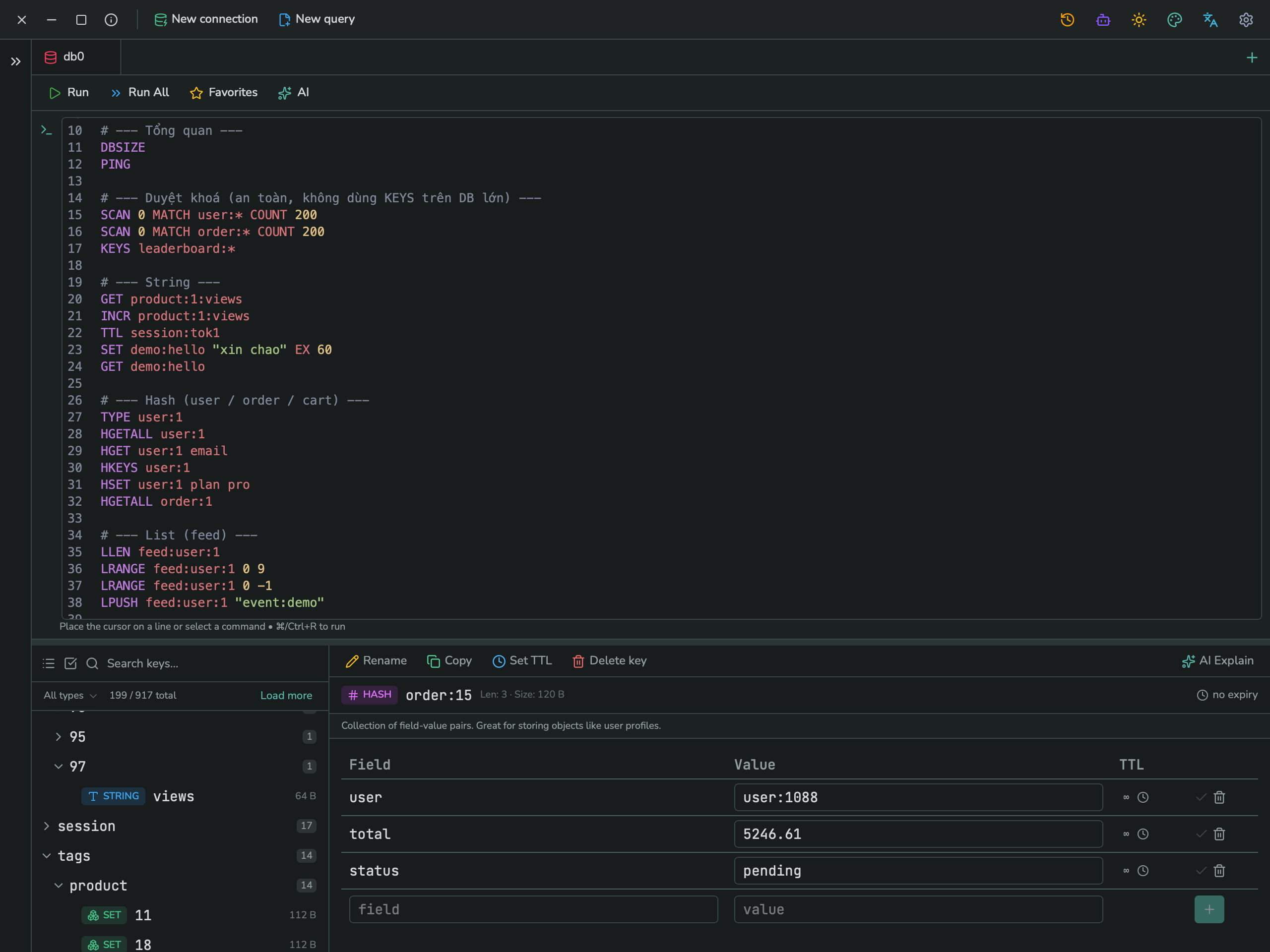
For a Redis connection, JiveDB replaces the table browser with a dedicated key browser: a flat or hierarchical list of keys, a value viewer tailored to each Redis type, and a command console for running raw Redis commands. This chapter covers all of it.
Contents
1. Flat view vs. tree view
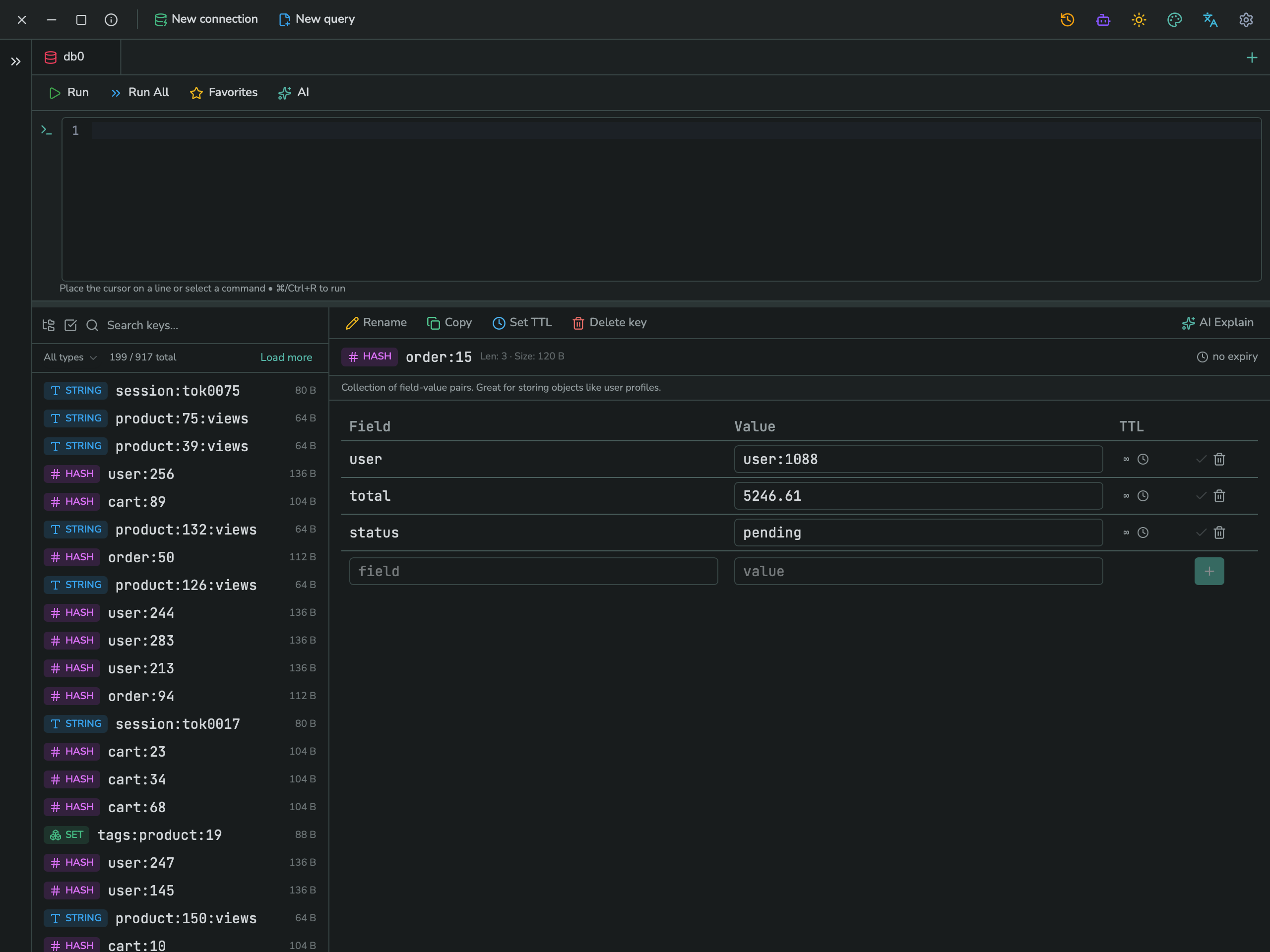
The key list on the left can show keys as a flat list, or grouped into a tree using the : character as a namespace separator (for example, user:1, user:2 become a user group).
Flat view — every key listed on its own:
Tree view — keys grouped by their :-separated namespace, with an expandable count per group:
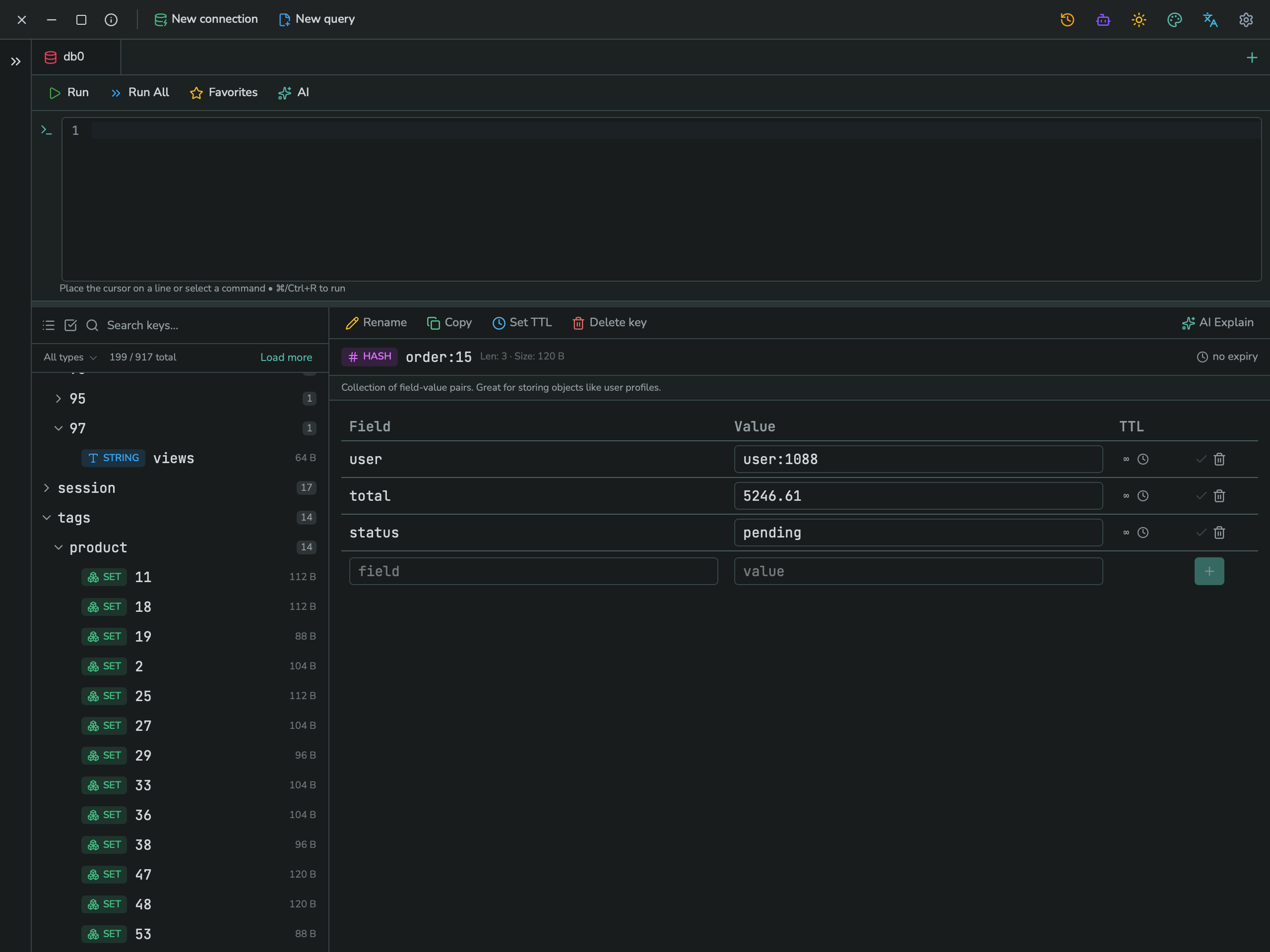
Click the toggle icon at the top of the key list to switch between the two views.
On the right, selecting any key opens its value panel, with a toolbar of Rename, Copy, Set TTL, Delete key, and (on the far right) AI Explain — which asks the AI Assistant to describe the key's value in plain language.
2. Searching and filtering keys
Type into the Search keys... box to filter the list by name. Use the type dropdown to narrow the list to one Redis type:
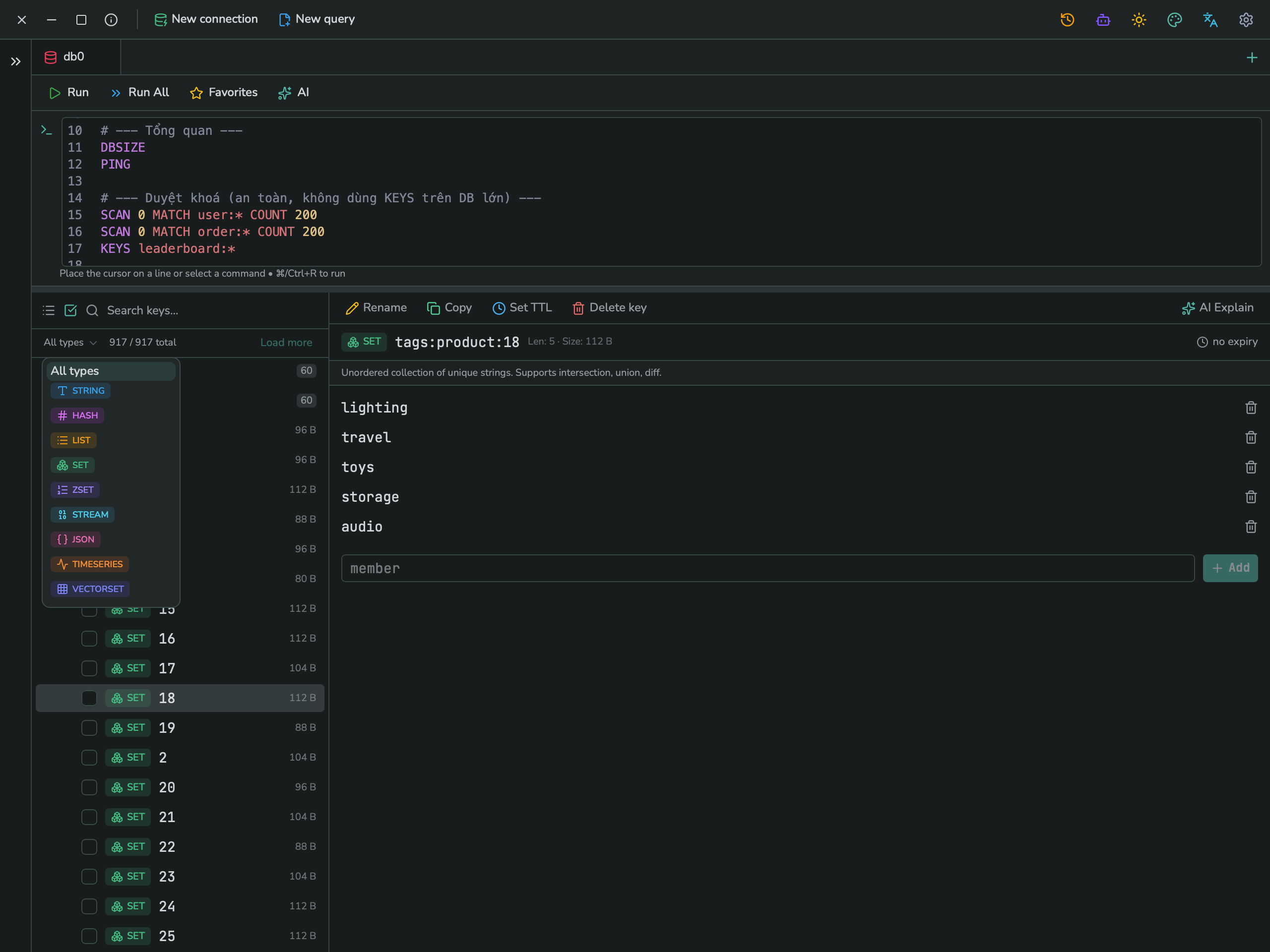
Supported types: String, Hash, List, Set, Sorted Set, Stream, JSON, Time Series, Vector Set — plus All types to remove the filter. Large key lists are loaded in pages; click Load more at the bottom of the list to fetch the next batch.
3. Selecting multiple keys
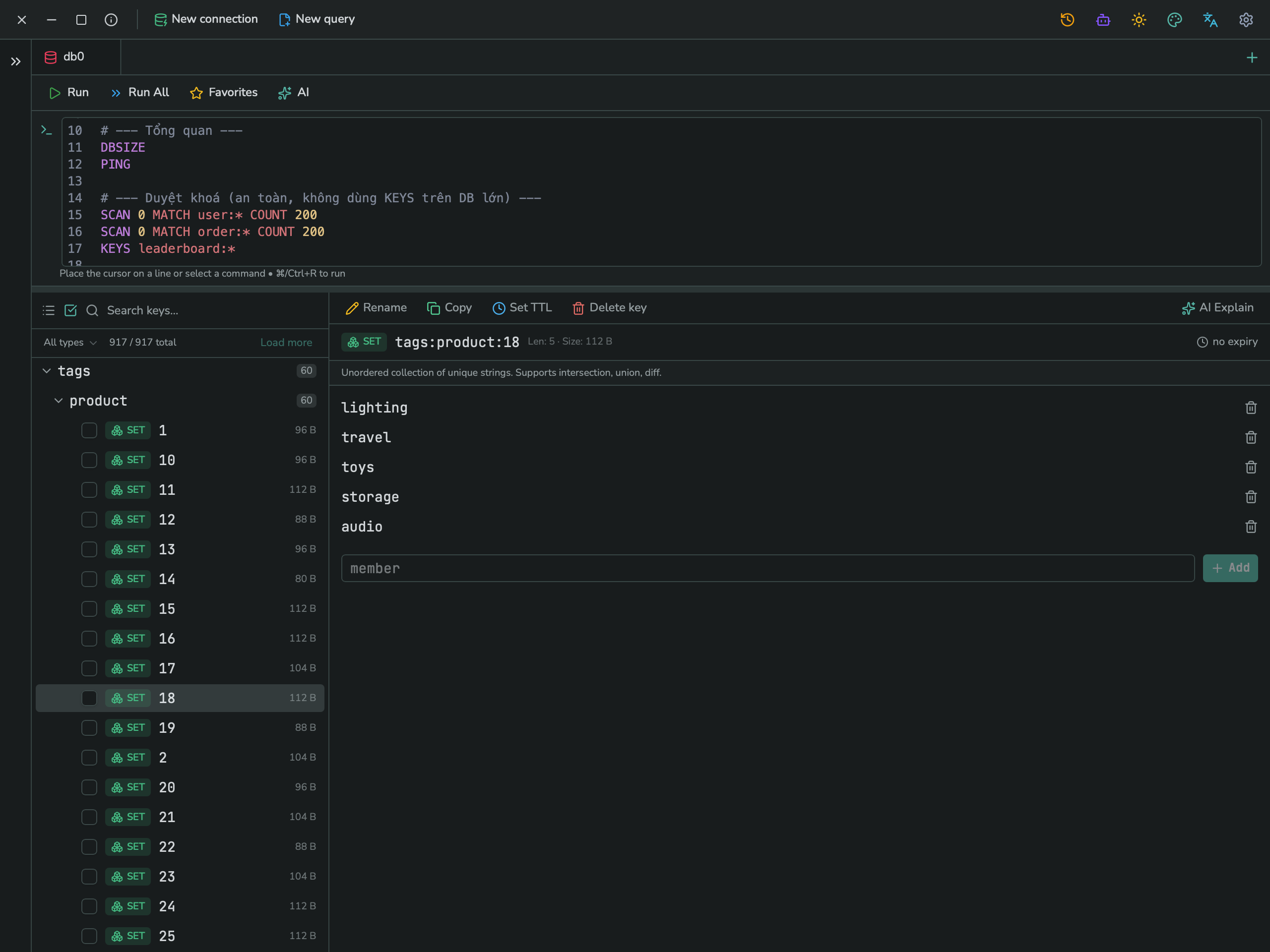
Click the checkbox icon at the top of the key list to turn on multi-select, then check the keys you want to act on together:
4. Right-click actions on keys
Right-click one or more selected keys for a context menu of bulk actions:
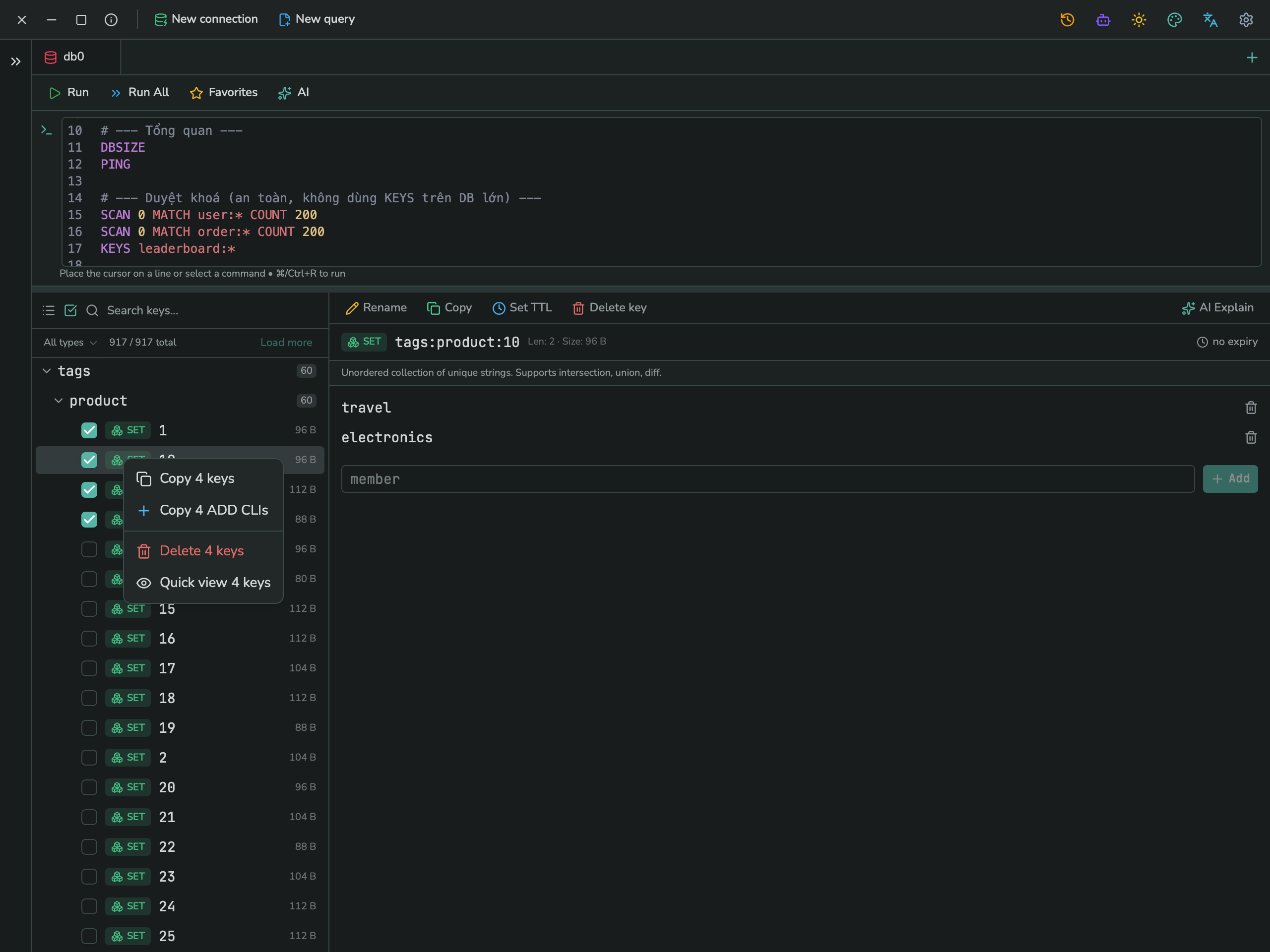
With multiple keys selected: Copy N keys, Copy N ADD CLIs (generates the Redis CLI commands to recreate them), Delete N keys, Quick view N keys. With a single key, the menu instead offers Quick view, Reload, Copy JSON, Copy ADD CLI, and Delete key.
5. Quick view (JSON)
Quick view opens a small popover showing the key's value as JSON, without leaving the list:
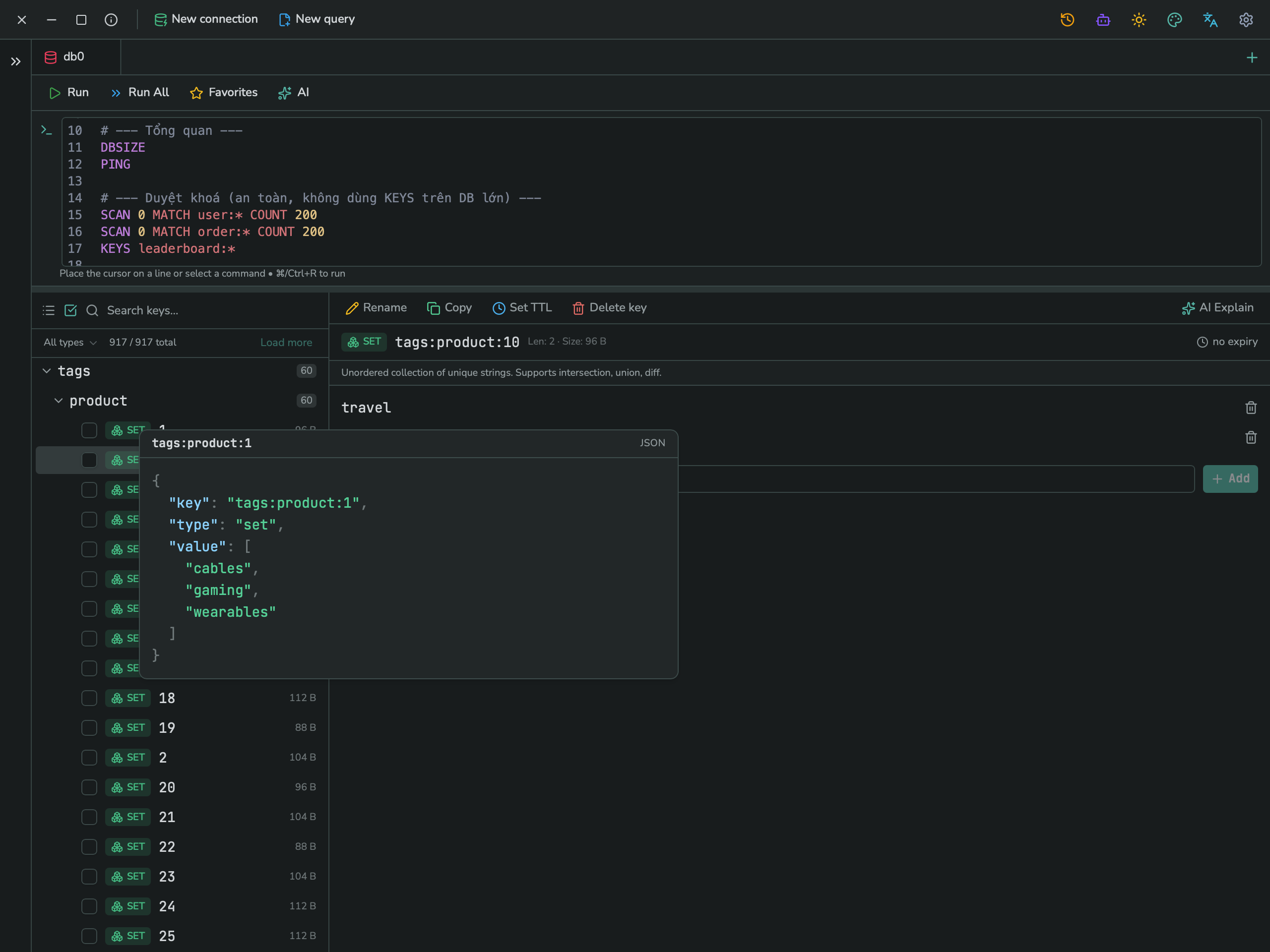
This is a fast way to check a value's contents without opening the full value panel.
6. Viewing complex types
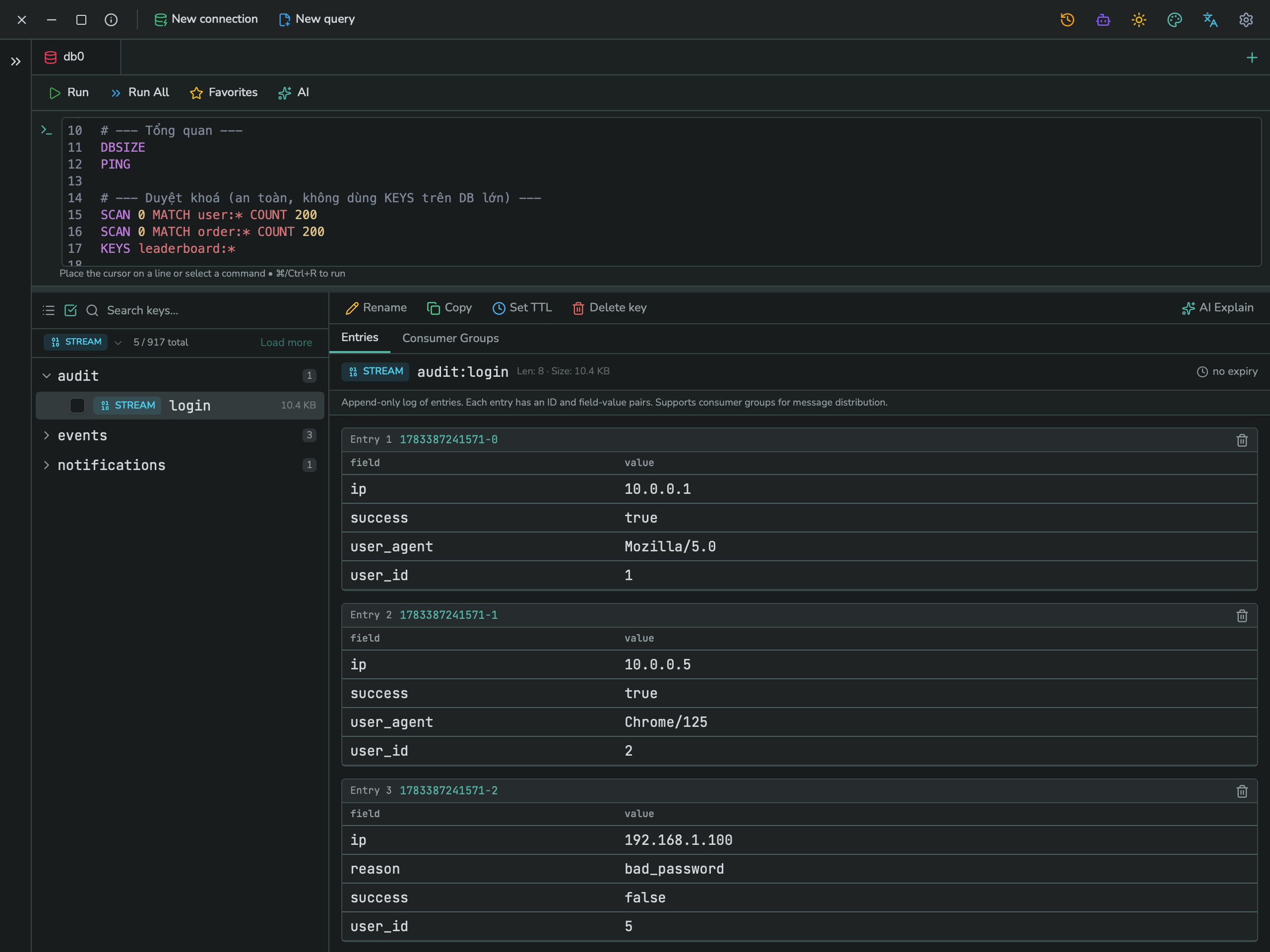
Types with structured data — Hash, Set, Stream, and others — get an editor suited to their shape. For example, a Hash shows a Field/Value/TTL grid, and a Set shows its members as a simple list, each removable with a trash icon and extendable with an Add button. A Stream shows its entries with an ID and field/value pairs, with a second tab for its consumer groups:
7. Running Redis commands
Open a New query tab on a Redis connection to get a command console, where you can type one or more raw Redis commands (one per line) and run them: