Once you have a connection (see Chapter 2), you browse its structure in the sidebar, on the left of the window. This chapter explains the sidebar tree, how to search inside it, and what each right-click menu offers.
Contents
1. The sidebar tree
The sidebar shows your connections as a tree, expanding downward:
Group (folder)
 └─ Connection
     └─ Database
         └─ Schema            (PostgreSQL only — other engines skip this level)
             ├─ Tables
             ├─ Views
             ├─ Materialized Views
             ├─ Functions
             ├─ Procedures
             ├─ Trigger Functions
             ├─ Sequences
             ├─ Object Types
             ├─ Domains
             ├─ Aggregates
             ├─ Operators
             ├─ Foreign Tables
             ├─ Collations
             └─ Full-Text Search
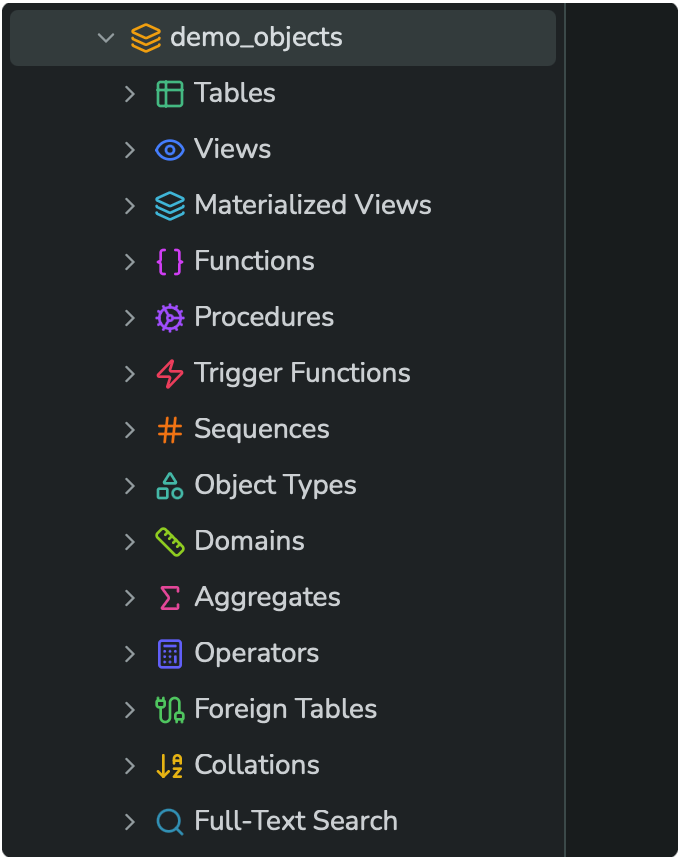
The exact list of categories under a schema depends on the database type:
- PostgreSQL — the full list above, including advanced categories like domains, aggregates, operators, foreign tables, collations, and full-text search configuration.
- MySQL / MariaDB / SQLite — a shorter list, mainly Tables, Views, and (for MySQL/MariaDB) Functions/Procedures. SQLite has no schema level and no stored procedures.
Click the chevron next to any node to expand or collapse it. Row counts (like 2k) are shown next to tables where available, as a quick sense of table size.
The short video below shows every one of these categories expanded in turn, with sample objects inside each one — including PostgreSQL-specific categories like composite types, ranges, enums, domains, and full-text search configuration:
2. Filtering the tree by name
To quickly find a connection or table by name, type into the search box at the top of the sidebar's Connections panel:
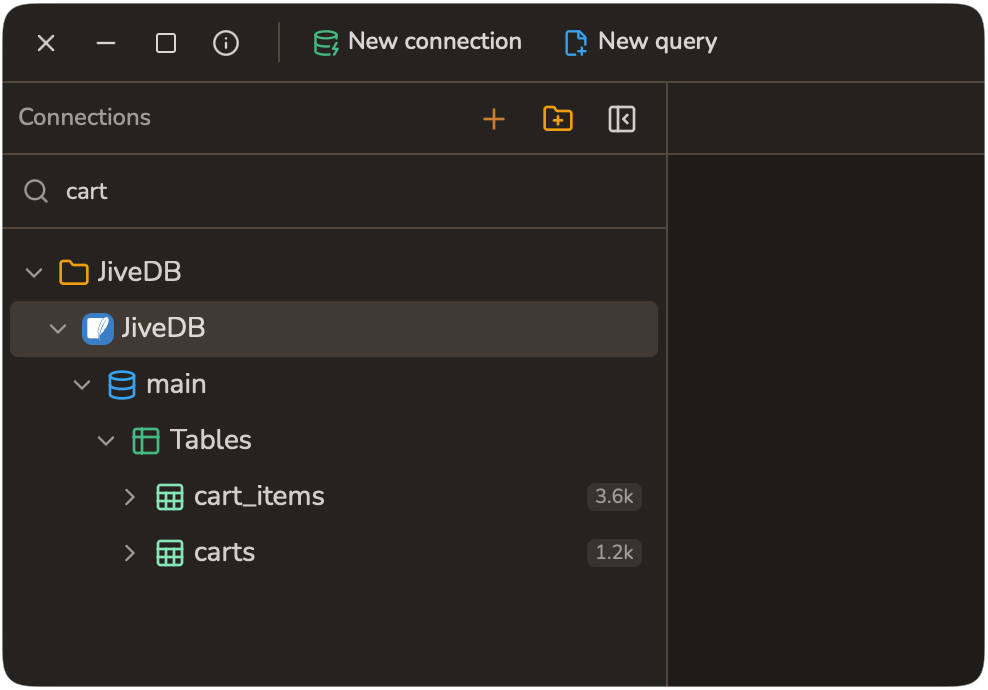
As you type, JiveDB narrows the tree to items whose name contains your text, and automatically expands their parent folders/connections/databases so you can see them right away.
3. Searching one schema in detail
To search only inside one schema — across its tables, views, and routines — right-click the schema and choose Search Database (see section 6). This opens a dedicated search box:
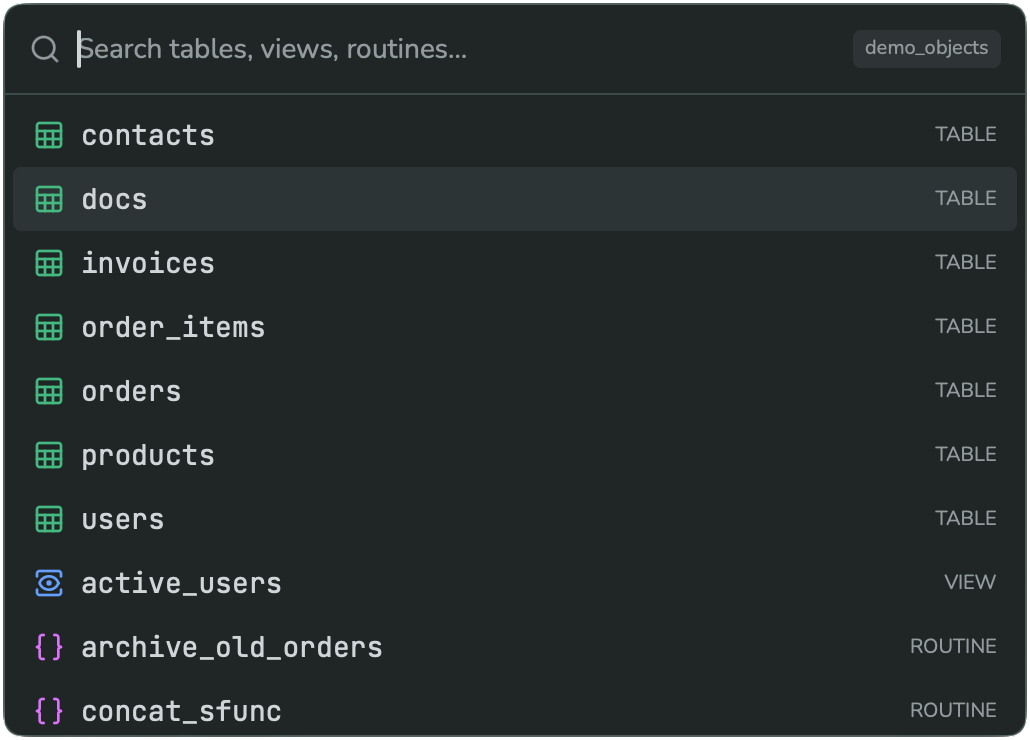
Type any part of a name; results are grouped with a colored type badge (green for tables, blue for views, purple for routines/functions), so you can jump straight to the object you need.
4. Right-click menu: a connection group
Right-click a folder (group) in the sidebar to rename or delete it:
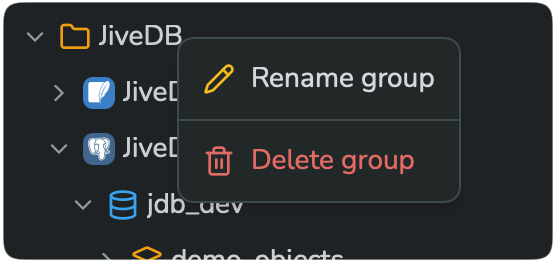
- Rename group
- Delete group
Deleting a group does not delete the connections inside it — it only removes the folder; the connections move back to the top level. Groups are explained further in Chapter 2, section 5.
5. Right-click menu: a connection
Right-click a connection node for connection-level actions:
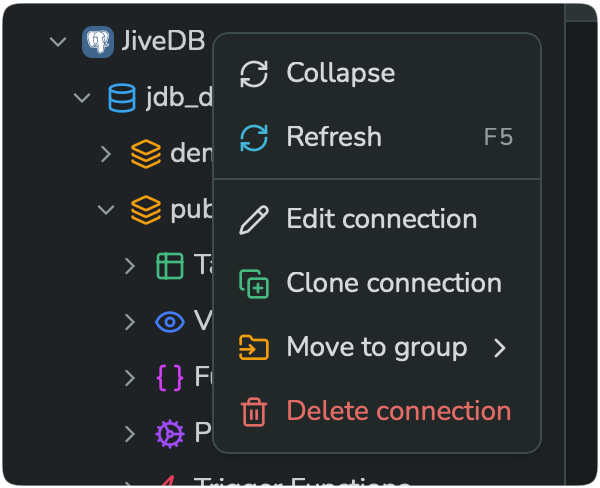
- Collapse
- Refresh (shortcut
F5) - Edit connection — opens the same dialog described in Chapter 2.
- Clone connection — duplicates the connection so you can create a similar one without retyping every field.
- Move to group — files this connection into an existing group.
- Delete connection
6. Right-click menu: a schema or database
Right-click a schema (PostgreSQL) or a database (MySQL/MariaDB/SQLite) for structural and data actions:
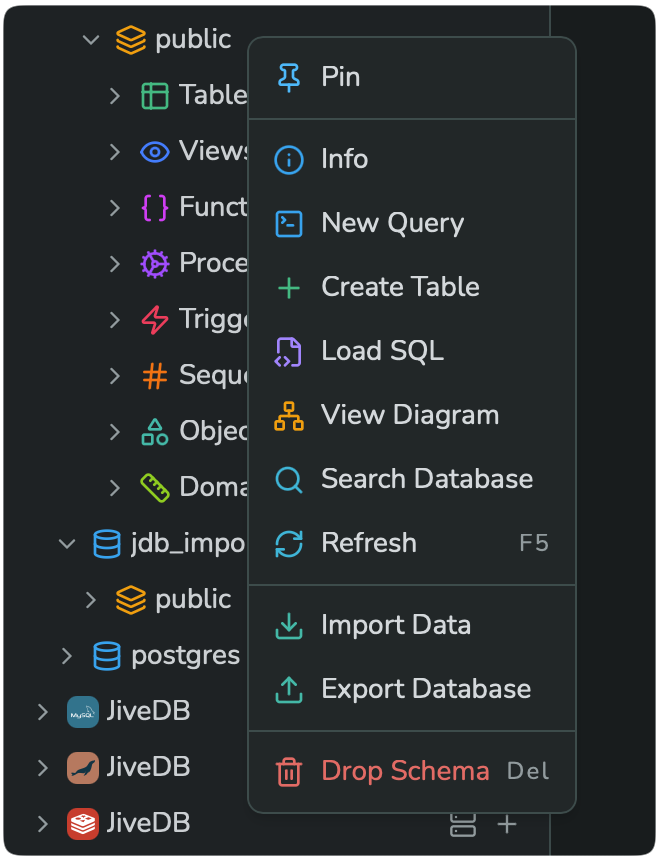
- Pin — keeps this schema pinned near the top for quick access.
- Info — opens the schema's metadata overview. See Chapter 9 — Schema explorer.
- New Query — opens a new query tab already pointed at this schema.
- Create Table
- Load SQL — runs a
.sqlfile from disk against this schema. - View Diagram — opens the ERD viewer for this schema. See Chapter 8 — ERD diagram.
- Search Database — the schema-scoped search described in section 3.
- Refresh (shortcut
F5) - Import Data
- Export Database
- Drop Schema (shortcut
Del) — destructive; not shown for SQLite, since SQLite has no schema/database-drop concept.
7. Right-click menu: the Tables list
Right-click the Tables category node itself (not a specific table) for a much shorter menu:
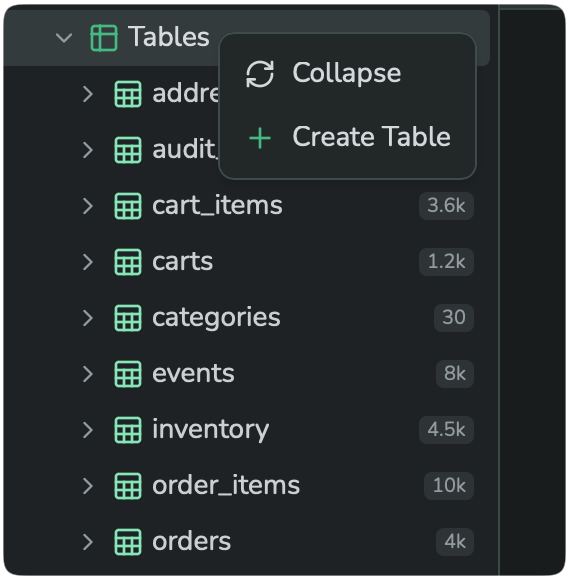
- Collapse
- Create Table
8. Right-click menu: one table
Right-click a single table for the full set of table-level actions:
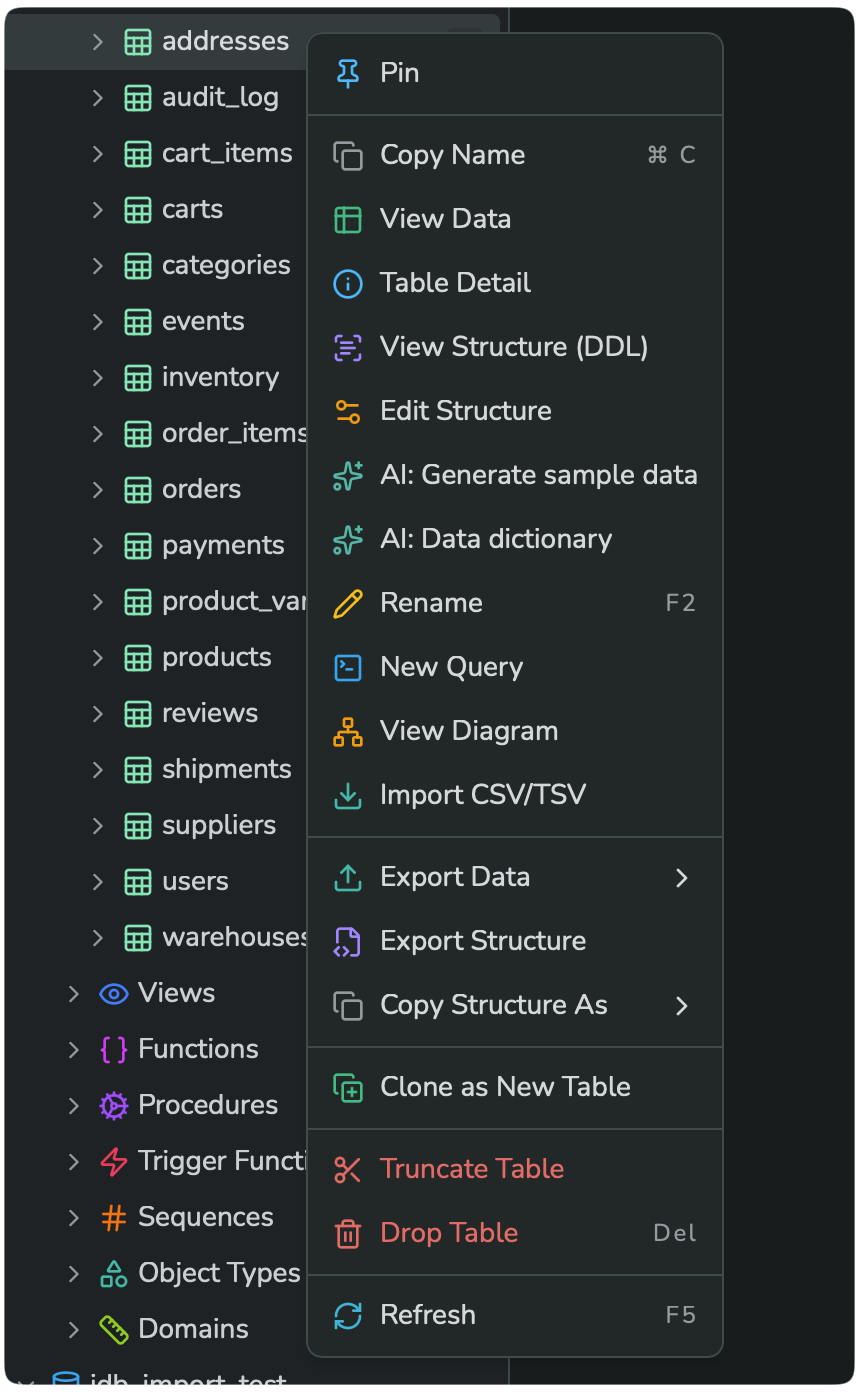
- Pin
- Copy Name (shortcut
⌘C/Ctrl+C) - View Data — opens the data grid. See Chapter 7 — Data grid.
- Table Detail
- View Structure (DDL)
- Edit Structure — opens the table designer. See Chapter 10 — Table structure.
- AI: Generate sample data
- AI: Data dictionary
- Rename (shortcut
F2) - New Query
- View Diagram
- Import CSV/TSV
- Export Data (with a format submenu)
- Export Structure
- Copy Structure As (with a format submenu)
- Clone as New Table
- Truncate Table — destructive; removes all rows.
- Drop Table (shortcut
Del) — destructive; removes the whole table. - Refresh (shortcut
F5)